How to Prevent Unwanted Copilot Co-Author Tags in Git Commits
A step-by-step guide to prevent unwanted Copilot co-author tags in Git commits in VS Code. Explains the issue, how to check settings, manually disable, update VS Code, and verify history.
Introduction
If you use Visual Studio Code (VS Code) with GitHub Copilot, you might have noticed something strange in your Git history: a Co-authored-by: Copilot line appended to commits — even those you wrote entirely on your own. This happened because a feature called git.addAICoAuthor was silently changed from off to all by default in VS Code 1.110. The setting adds a co‑author credit for every commit that involved any AI interaction, including inline completions. Worse, it could appear even after you disabled AI features or replaced an AI‑generated message with your own.
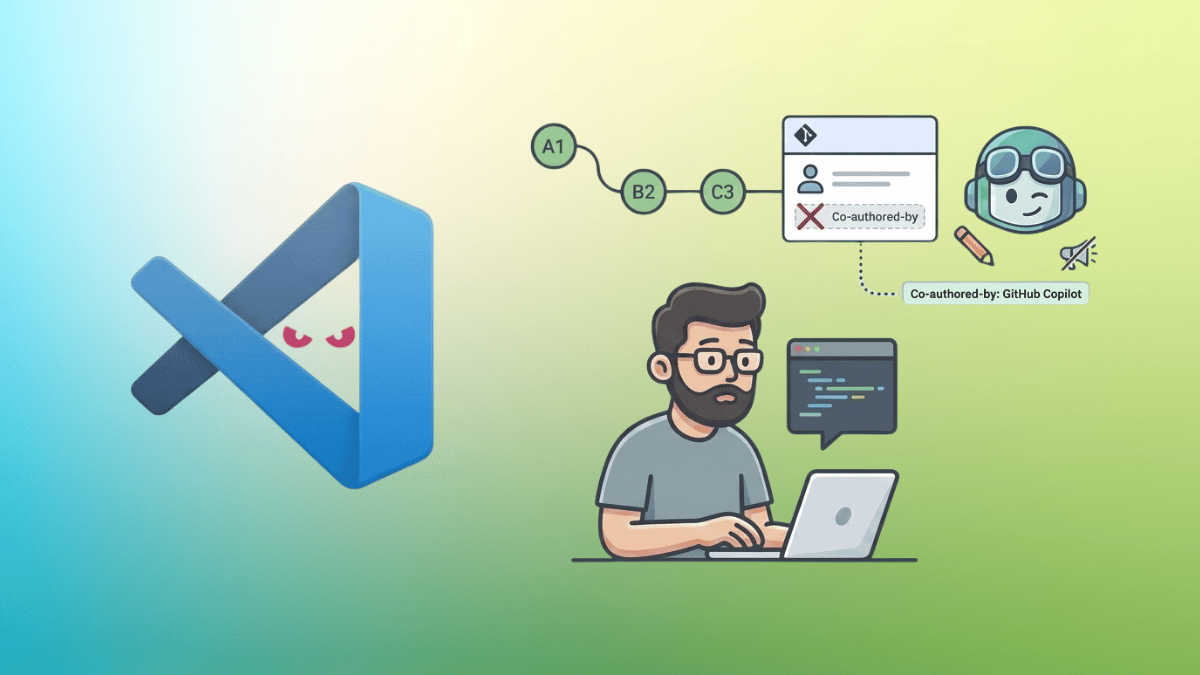
This guide walks you through understanding the issue, checking your configuration, fixing it, and preventing it from happening again. By the end, you’ll have full control over your Git commit trailers.
What You Need
- Visual Studio Code (any version from 1.110 onward, but especially 1.110–1.118)
- Git installed and configured
- A terminal or Git client to view commit history
- Basic familiarity with VS Code settings (JSON or UI)
Step-by-Step Guide
Step 1: Understand the Setting and Its Impact
The culprit is the VS Code setting git.addAICoAuthor, introduced in version 1.110 (March 2024). Its purpose is to tag commits with a Co-authored-by: Copilot trailer when AI‑generated code is used. Originally, it defaulted to off. In April, a pull request (PR) changed the default to all — the broadest option — adding the trailer to every commit that touched any AI feature, even inline completions. The change was merged without a public release note, so most users never knew.
Developers reported the trailer appearing even when chat.disableAIFeatures was set to true, and it was appended after the commit message was finalized — meaning you couldn’t see or remove it in the commit editor. A fix (PR #313931) has been merged and will ship with VS Code 1.119, reverting the default to off and fixing the detection logic.
Step 2: Check Your Current VS Code Version and Setting
First, determine if you’re affected. Open VS Code and go to Help > About (or Code > About Visual Studio Code on macOS). Note the version number. If it’s between 1.110 and 1.118, you may have the default set to all unless you manually changed it.
Next, open the Settings editor (Ctrl+, on Windows/Linux, Cmd+, on macOS). Search for git.addAICoAuthor. If you don’t see any entry, the default is active. If you see it set to all, the silent default change has been applied to your user settings.
Step 3: Manually Change the Setting to Off
To stop the unwanted trailers immediately, set git.addAICoAuthor to off.
- Open the Command Palette (Ctrl+Shift+P or Cmd+Shift+P).
- Type Preferences: Open Settings (JSON) and select it.
- In the
settings.jsonfile, add or modify the line:"git.addAICoAuthor": "off" - Save the file. The change takes effect immediately.
If you prefer the UI, go to File > Preferences > Settings, search for git.addAICoAuthor, choose off from the dropdown, and save.
Step 4: Update VS Code to the Latest Version (Preferably 1.119 or Later)
Microsoft has acknowledged the mistake and released the fix. The upcoming version 1.119 sets git.addAICoAuthor back to off by default and corrects the detection bug that made the trailer appear even when Copilot wasn’t used.

- Check for updates via Help > Check for Updates.
- If 1.119 is available, install it. If not, stay on the latest stable build (as of writing, 1.118 is current—the fix is still in pre‑release).
- After updating, verify the setting again — it should now be
offby default unless you overrode it.
If you want the fix immediately, you can install the Insiders build (which includes PR #313931).
Step 5: Review Your Existing Git History for Unwanted Trailers
Once you’ve fixed the setting, you may want to check past commits to see if any contain the unwanted co‑author line. Open a terminal in your repository and run:
git log --grep="Co-authored-by: Copilot"If you find commits you’d like to clean up, you can use an interactive rebase or git filter-branch (with caution). Alternatively, you can simply ignore them, as they only add metadata and don’t affect functionality.
For future commits, the setting change ensures no new trailers are added without your explicit permission.
Tips for Avoiding Similar Surprises
- Monitor release notes: Before updating VS Code, check the official release notes for any changes related to Git, AI, or experimental features.
- Review default settings regularly: Some features change defaults without fanfare. Periodically review your
settings.jsonand compare with the VS Code documentation. - Use version control for your configuration: Keep your
settings.jsonin a Git repo or sync service so you can roll back changes. - Test in a sandbox: If you’re unsure about a new setting, create a test repository, make a few commits, and inspect the git log before applying the setting to production work.
- Stay informed: Follow developer communities (like the Hacker News discussion) to learn about emerging issues.
By following these steps, you can ensure your Git history remains clean and that Copilot gets credit only when you want it to. Microsoft has acknowledged the oversight — now you have the tools to take control.